Using the GUI
The Plugin Manager panel provides a graphical interface for managing plugins. It allows users to view currently installed plugins, check for available updates, install new plugins, and deactivate or remove existing ones. The panel displays installed and available plugins in a unified layout: plugin categories are listed on the left, and selecting a plugin shows its description on the right. Changes made during a session (such as installations, updates, or removals) are listed in a review area at the bottom of the panel.
The easiest way to use the Plugin Manager is the Graphical user interface, which can be found in GroIMP under help/plugin manager.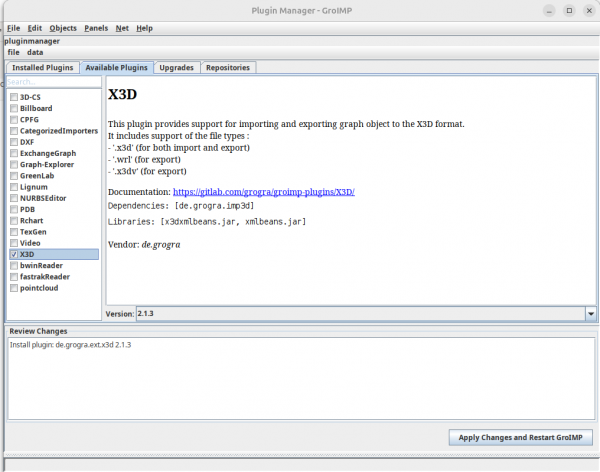
The view for installed plugins and available plugins and updates is the same, all have the plugins of their category in a list on the left and a description of this plugin if selected on the right. Every change is listed in the text filed below for reviewing. To install a available plugin or to upgrade a plugin the box next to it needs to be checked. For the installed plugins a three way selection is possible: if their box is checked with a check mark they stay installed, if the box is not checked they are removed and if the box is checked with a small square they are deactivated but not removed.
Deleting/ Deactivating plugins
1. The parameter file: GroIMP can load options as parameters from either: the default file (in ~/.grogra.de-platform/groimp.properties) or from a file given when starting groimp: “java -jar core.jar -t “path/to/perfs.properties”. The preference file is loaded when groimp starts and its content is used instead of java preferences when an option is queried in groimp. The option name follow the complete name of its registry path (I will provide a list of all option and their paths in the wiki). But for example the option useJRT can be defined as : /de/grogra/options/rgg/javaimport/useJRT=true
2. The plugin manager is accessible from the GUI under "Help>Plugin manager". Its goal is to help install/ remove/ update groimp plugins. So users can get small fixes in plugins without having to re download /reinstall a whole new groimp version.
And (maybe?) if users create new plugins and decide to share them, It could make them available for all other users. From the plugin manager GUI, you can “install”, “update”, “disable”, “remove” plugins. install will try to download it from the given source then dump it in the selected path (selected in the options/ by default ~/.grogra.de-platform/plugins). update: each plugin display its available versions. By selecting a different version you can upgrade/downgrade a plugin. This will download the new version from the given source, extract it under the plugin path, and remove the old version. disable is more usefull for me to debug. It set some groimp option to load the given plugin as disabled. They are then not usable from groimp. But they are not removed. It adds the option under the currently used property file (either one passed with ”-t“ or the default one). remove simply delete the plugin. It removes it from the computer (so be careful). For groimp instances where the installation path is not writable (usually on windows if you don't run groimp in admin) then, there is an option in groimp to “blacklist” plugin instead of deleting them. It adds their path to a file under (~/.grogra.de-plaftorm/blacklist). Blacklisted plugins are not loaded in groimp so a new version can be installed. (blacklist and disable are different: one is loaded but disabled the other is not loaded). The list of available plugin is provided by the “repositories” that you can see under the plugin manager “repositories”. You can add your repositories that contains plugin metadata as (a JSON that contains the plugins data or a local directory in which some groimp plugin exist). All of these actions are doable from groim commands. Thus, accessible from the api, cli, and in headless with the command parameter.